Introduction to the Import Dataverse Entities Feature
Import Dataverse entities into SQL Server tables automatically using Ouvvi or the Run Tool.
There's a new step type available in both the Run Tool and Ouvvi that enables you to quickly export multiple Dataverse entities into a SQL database.
The step handles the creation of the table and updating the schema on each run, so you don't need to pre-create your tables or define schemas manually — just make sure you have a database ready to hold the tables.
How It Works
The step connects to your Dataverse environment and your SQL Server database using connection library connections. When you run an import, it:
- Reads the entity schema from Dataverse
- Creates or updates the matching SQL Server table automatically
- Imports the records and reports progress in real time
Deletes are hard deletes — if a record is no longer present in the source Dataverse environment it will be permanently deleted from the SQL database. If you need to preserve deleted records, use incremental mode, which skips delete processing entirely.
You don't need to pre-create your tables or define schemas. The Dataverse to SQL step takes care of that, just make sure you have a database ready to hold the tables.
Use Cases
Below you can see a couple of use cases where we think this might prove beneficial.
| Use Case | Benefit |
|---|---|
| Reporting and BI | Run Power BI, SSRS, or Excel reports against SQL instead of your live Dataverse — meaning faster reports and lower API usage |
| Data Backup and Archiving | Maintain a queryable SQL snapshot of your Dataverse data that doesn't depend on Dataverse availability |
| Feeding a Data Warehouse | Get your raw Dataverse entities into a staging schema ready for transformation into your dimensional model |
| Cross-System Analytics | Join Dataverse data with ERP, HR, and finance records by getting everything into the same SQL database |
| Performance Offloading | Move heavy analytical queries off Dataverse entirely to avoid API throttling and reduce load on your live environment |
| Supporting Legacy Systems | Feed Dataverse data into older internal systems that can query SQL Server but cannot connect to Dataverse directly |
| Development and Testing | Quickly populate DEV or UAT databases with a copy of production Dataverse data for integration testing or report development |
Run Tool Setup
Before running your first import you need to make sure you have pre-configured your Dataverse and SQL connections in your local Data Sync Connection Library.
You can do this by opening the Data Sync designer and creating a connection to each. Note that for Dataverse you need to use either OAuth Client Credentials or OAuth Client Credentials with Certificate.
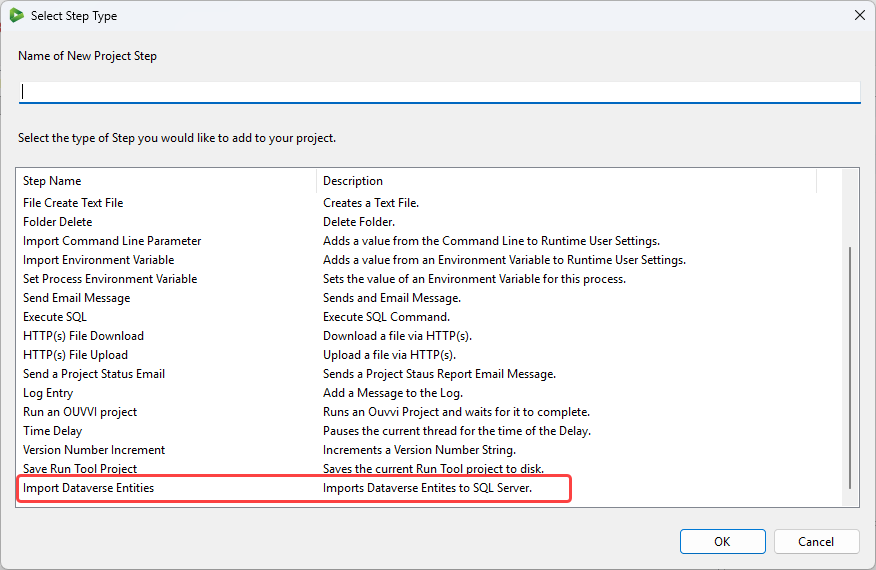
If you have saved your connections already, start by opening the Run Tool, saving the file to the file system and adding a new step. Select the Import Dataverse Entites step type from the list and enter a name for the step.
Configure
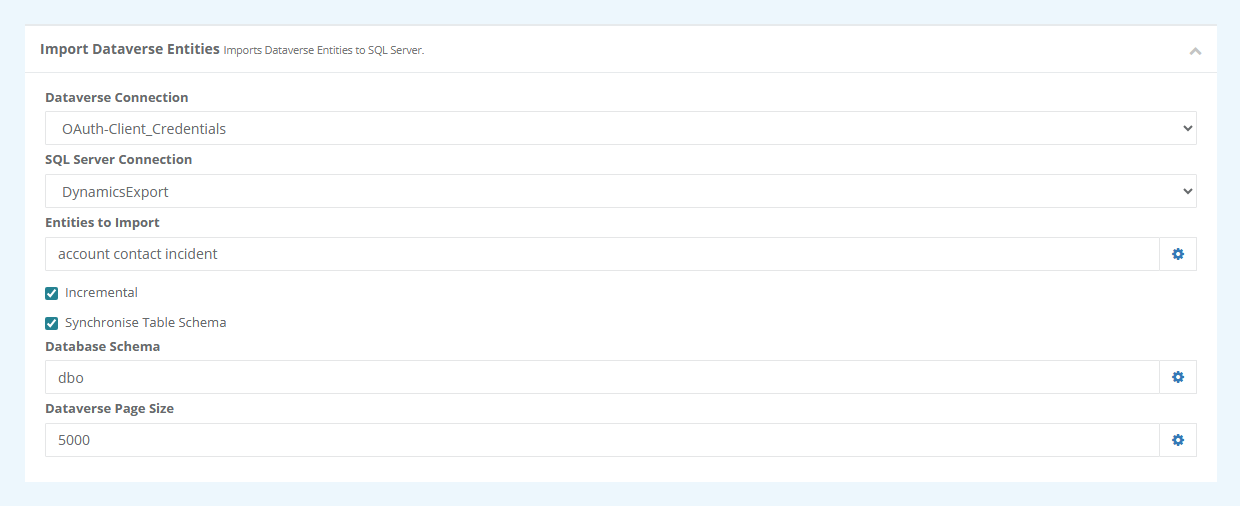
Now select your Dataverse and SQL Database connections from the dropdown menus, then enter the logical names of the Dataverse entities you want to import. You can pass as many entity names as you need in a single step, separated by either a space, a comma, or a semi-colon.
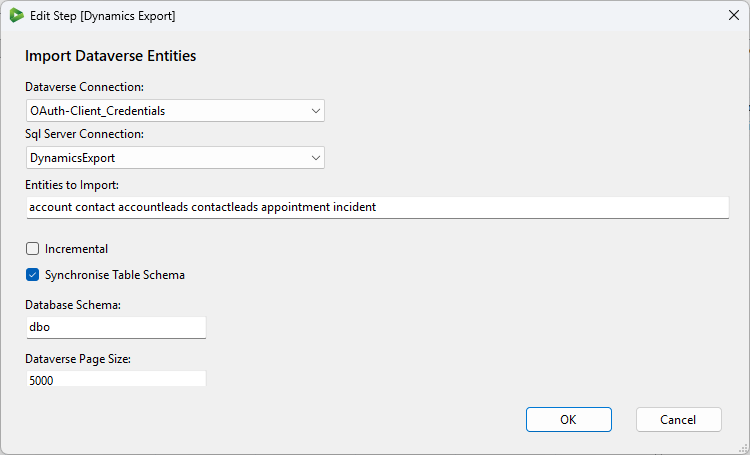
Click OK to add the step to your project and close the window.
Run
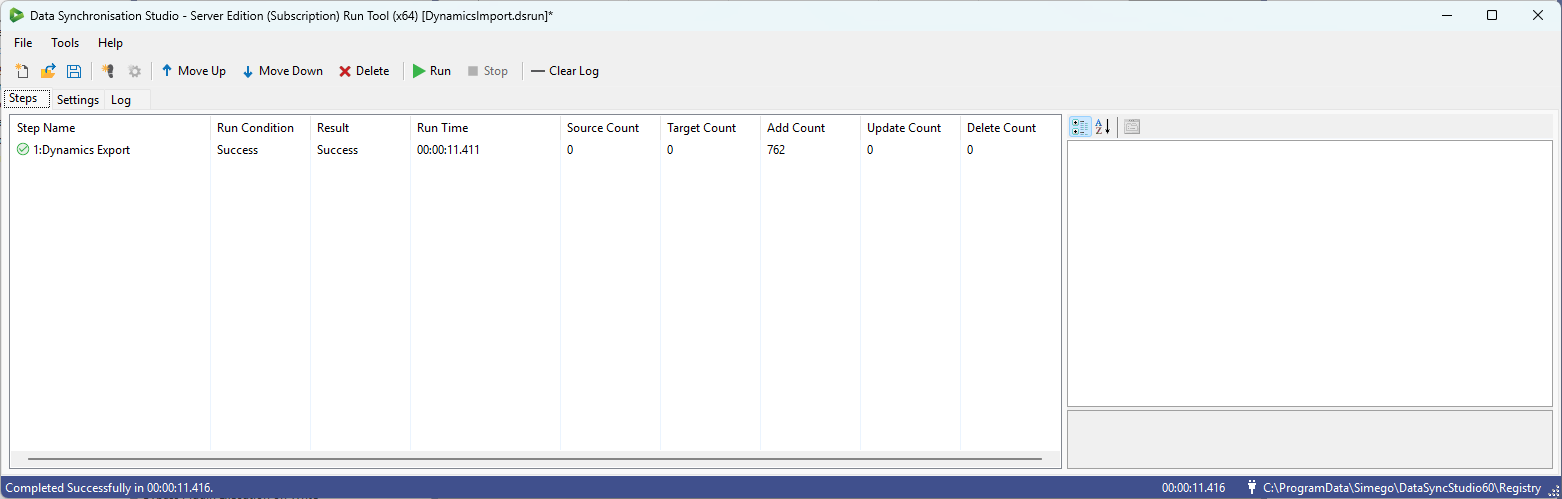
Once your step has been added to the Run Tool project, make sure to save your project and then click Run to start the synchronisation.
Each entity is then processed in sequence with its own record count and timing, and a summary of adds updates and deletes is shown at the end.
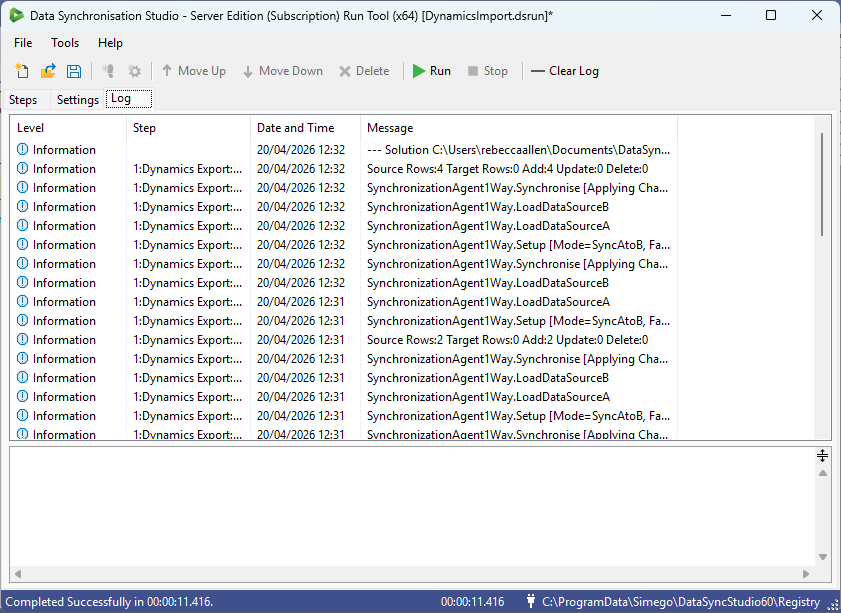
You can also see the details for each entity processed in the log window.
Full configuration details for the Run Tool step can be found here.
Ouvvi
The Ouvvi step configuration works in the same way as the Run Tool, however it will use the Ouvvi Connection Library for your connections. If you have connections stored in your local Data Sync registry but not in the Ouvvi Connection Library, you can import them into Ouvvi using the Upload Connection button. Please see our docs here for full instructions.
The Ouvvi configuration looks very similar to the Run Tool configuration, and once configured you can run the project as you would normally.
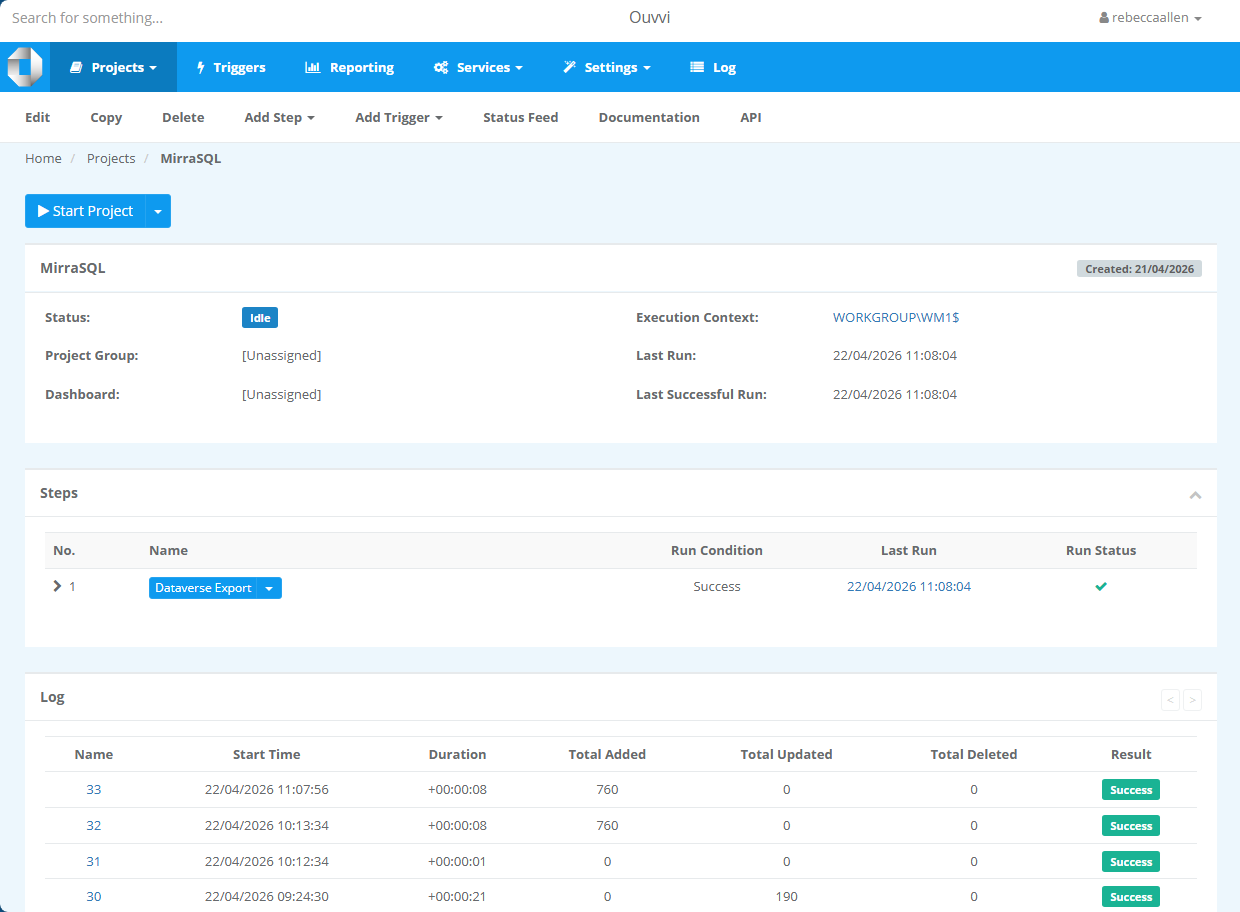
The results and logging will appear as normal in your Ouvvi logs and project statistics.
Additional Features
Below we cover a few details about the different settign options avaialble and where you might use them.
Incremental Mode
When enabled, only new and modified records are imported rather than the full dataset. This is particularly useful for large entities where a full import on every run would be slow or risk hitting Dataverse API rate limits.
The typical pattern is to run a full import first to populate your tables, then switch to incremental mode for all subsequent runs to keep things fast and lean.
Note that incremental mode will not detect or process deleted records. If you need deletes to be reflected in SQL, run in full mode instead — but bear in mind that deletes are hard deletes and records removed from Dataverse will be permanently deleted from SQL.
Targeting a Specific SQL Schema
By default the step creates tables in the dbo schema.
You can specify a custom schema such as crm to keep your Dataverse data isolated from other tables in the same database.
Which is useful if you are exporting from multiple Dataverse environments or sharing a database with other systems.
This creates tables as crm.account, crm.contact, and so on.
Controlling Page Size
By default the step fetches records from Dataverse in pages of 5,000. For entities with large string data such as attachments and files, you may find this causes timeouts or slow performance. Reducing the page size, for example to 1,000 or 500, gives Dataverse more manageable requests and can resolve these issues.
Skipping Schema Synchronisation
By default the step checks and updates the SQL table schema on every run to pick up any new or renamed columns from Dataverse. If your tables are already correctly set up and you want to skip this check for performance, you can uncheck the Synchronise Table Schema option.
If you have questions or run into anything unexpected, get in touch at support@simego.com.